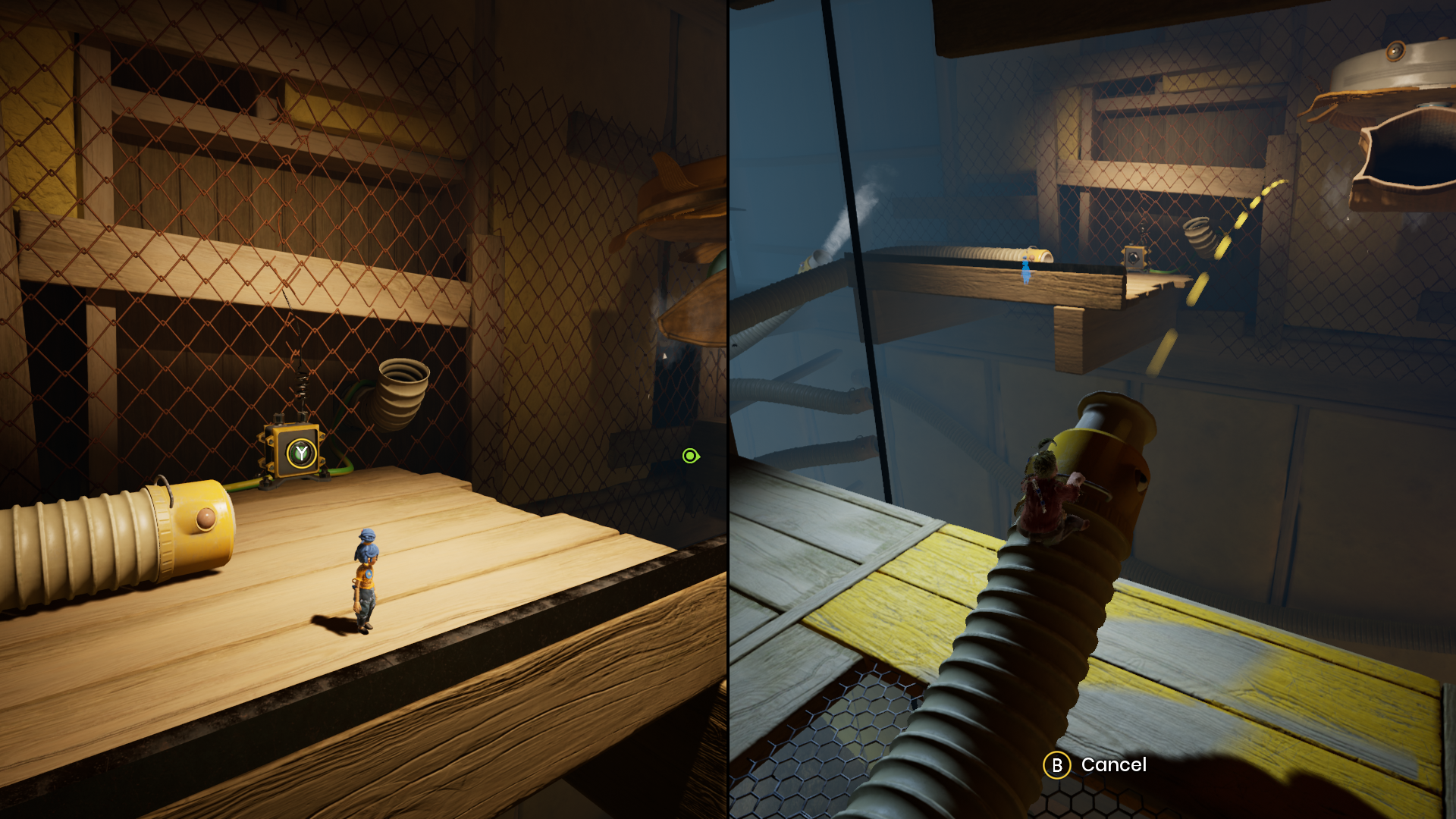
Recently I wanted to play It takes two, a super fun cooperative multiplayer with Schmiddy, a good colleague of mine, and as such jumped into the exciting world of open source game sharing.
How can we play games together from a Linux machine?#
There are a few providers. Steam has the Steam Remote Play, but it’s only available for a select few games and well, it also requires steam. There are a few workarounds, but they’re much harder on Linux and I want a proper solution. There’s Parsec, which is available across platforms. But it has two major drawbacks, it’s not open source and you cannot host on Linux, Linux machines can only be clients.
So is there any way to play together, if there is a Linux host? The answer is yes! With Sunshine ☀️ and Moonlight 🌙!
Sunshine and Moonlight#
Sunshine is a cross-platform FOSS self-hosted low-latency game stream host software that enables users to stream their PC to either their other devices or their friends. Moonlight on the other hand is just a FOSS client for Sunshine streams and can be installed on basically any device. One can host their 4K 120 FPS HDR game on a powerful Linux machine and then play it on a Raspberry Pi.
How to set up the host and client#
1. Client/Moonlight side#
Downloading and installing Moonlight is extremely easy. Just go to the official website or to your favourite package manager or F-Droid.
2. Host/Sunshine side#
This tutorial focuses on the installation on Linux, but the installation steps on Windows are very similar. Firstly check if your GPU has the proper CUDA driver.
Next we can install Sunshine via Flatpak, you can skip the step below if you install sunshine via your package manager like on Mint:
flatpak install --system flathub dev.lizardbyte.app.Sunshine
but you will have to enter:
flatpak run --command=additional-install.sh dev.lizardbyte.app.Sunshine
Assuming everything is alright, you start the service by entering:
flatpak run dev.lizardbyte.app.Sunshine
Don’t close the terminal! As long as it runs, sunshine is on!
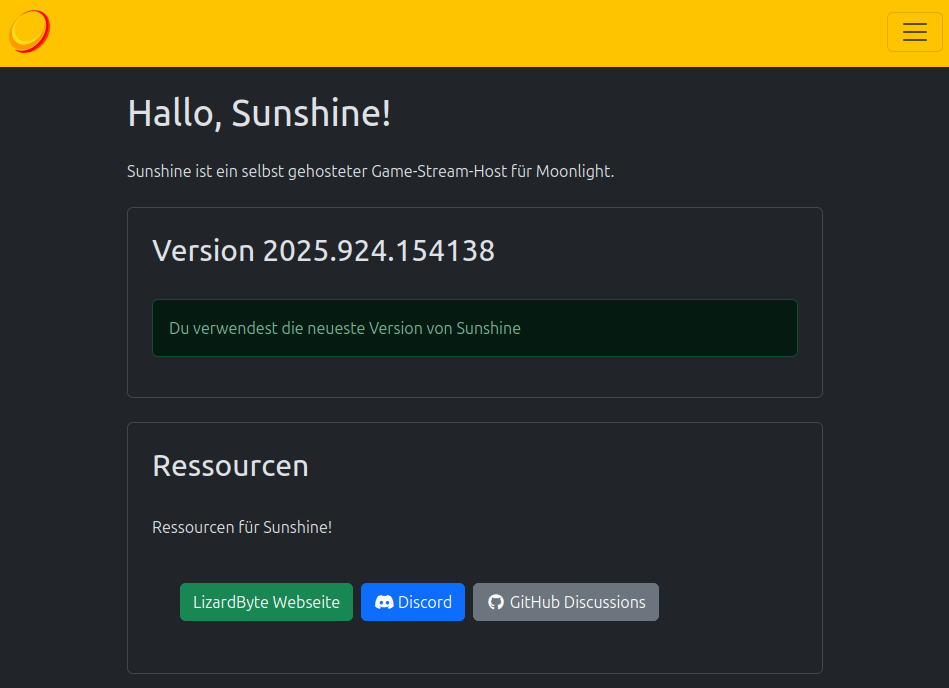
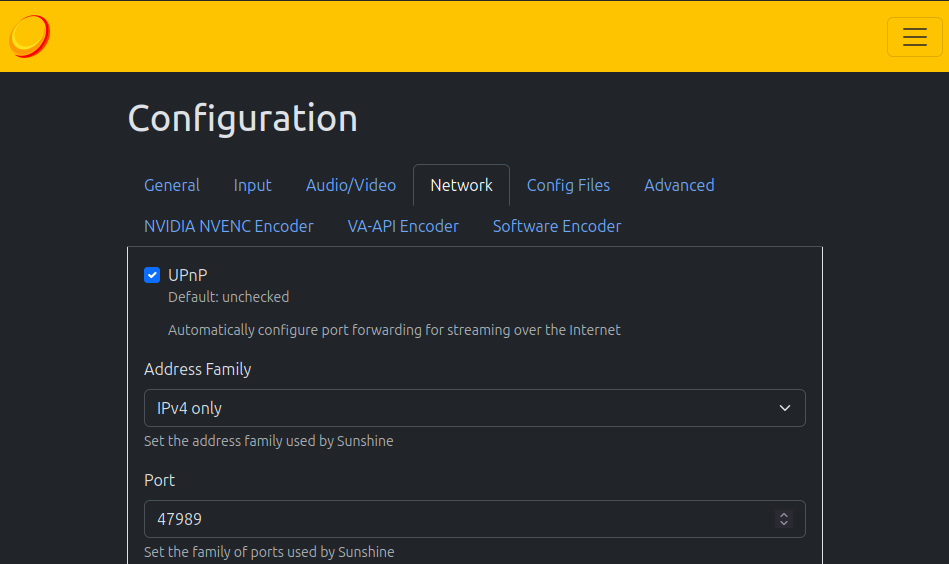
We can now move on to the configuration available on https://localhost:47990. You’ll have to create a local account. Under the configuration/network settings enable UPnP (this one must also be enabled in your router/ISP settings in order to be used). You can also disable Encryption modes for improved performance. With that everything should be setup for our first test!
3. LAN Test#
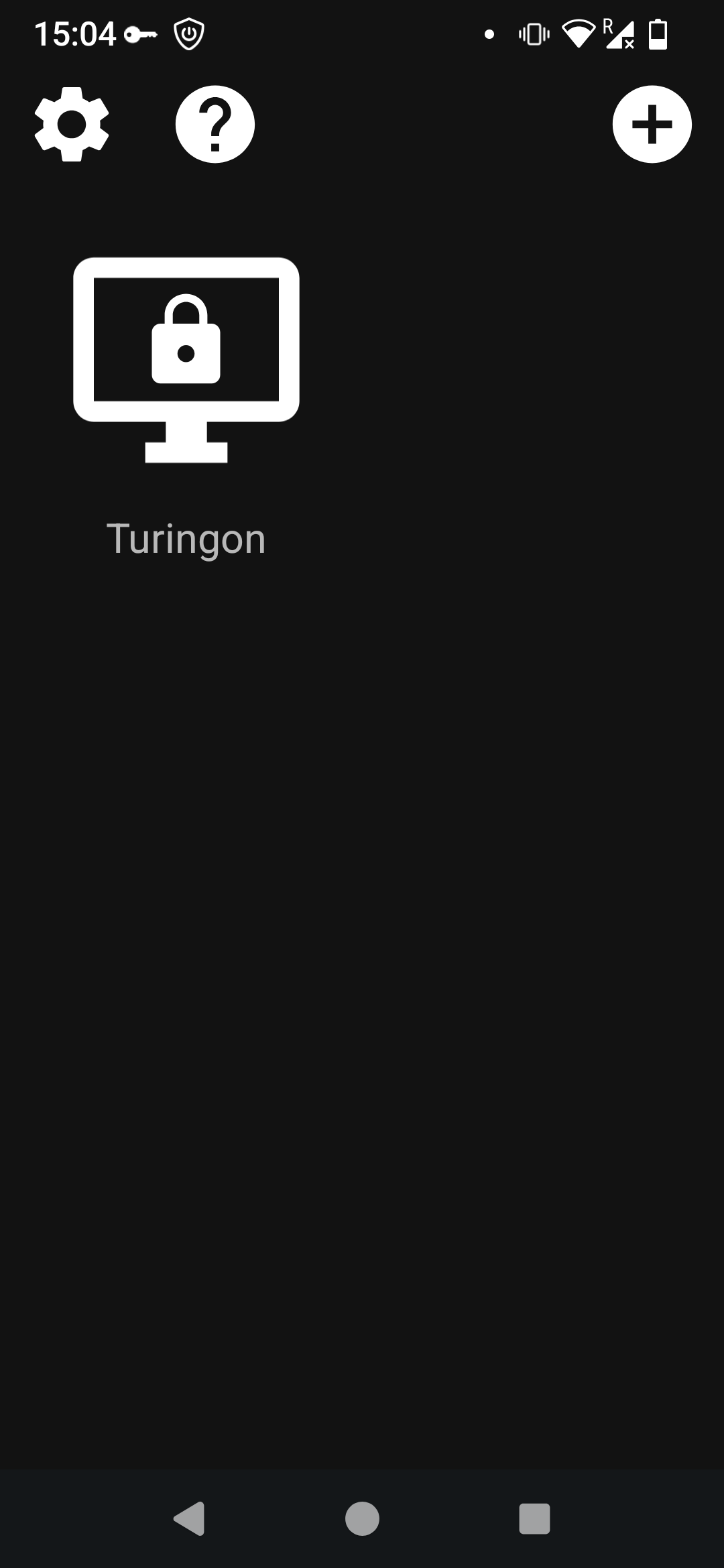
To test if everything works, make sure that your Sunshine host is running on your Linux machine and download Moonlight on your phone, both devices should be connected to the same local access network (LAN). If everything works, your host device should show up. You’ll have to enter the PIN to pair the two devices on your host PC and voilà! You should be able to control the PC from your phone.
4. Getting ready for playing across the Internet#
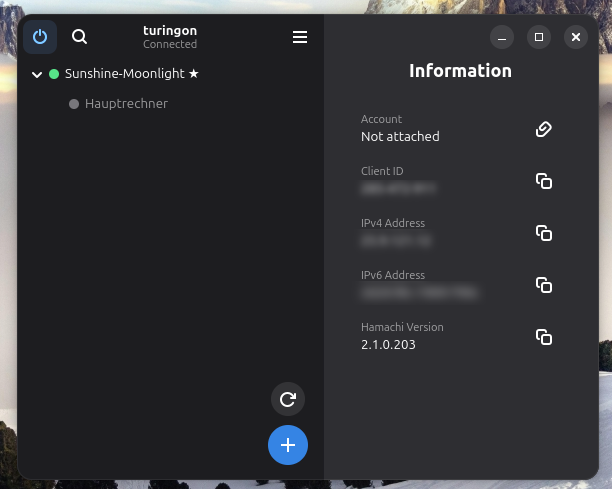
Schmiddy lives quite far away, so we have to setup Sunshine across the internet. One option is to forward your ports, but this greatly depends on your ISP. Mine for example has way too many requirements in order for port forwarding to be feasible. So if port forwarding isn’t an option, I can strongly recommend a P2P VPN like Hamachi, which is free of charge for up to 5 computers. On Debian-based systems you should install logmein-hamachi_2.1.0.203-1_amd64.deb. I can then strongly recommend to download Haguichi which provides a FOSS graphical frontend for Hamachi on Linux. Both sides need to download Hamachi and the Linux host needs to create a room. The other person can then join the room, enter the ID and the password and should now be able to find the other user’s PC in Moonlight!
5. Enjoy your game!#
Enjoy playing together! Even with a P2P VPN Sunshine and Moonlight work like a charm!